Running Jobs on an HPC Cluster (SLURM)
At some point a simulation, a bootstrap, or a genomics pipeline outgrows your laptop. When a job needs more cores, more memory, or many days of runtime than a personal machine can give, the answer is usually a high-performance computing (HPC) cluster. At Wake Forest the two most relevant clusters are:
- DEAC — the university’s central research cluster (Reynolda campus), free for baseline research and instructional use.
- DEMON — the Wake Forest University School of Medicine cluster, used the same way for biomedical and clinical research computing.
Both run the SLURM scheduler, use environment modules for software, and are reached over SSH, so the workflow below transfers between them. If you can drive one, you can drive the other; only the login hostnames and available software differ.
What a Cluster Is (and Why You’d Use One)#
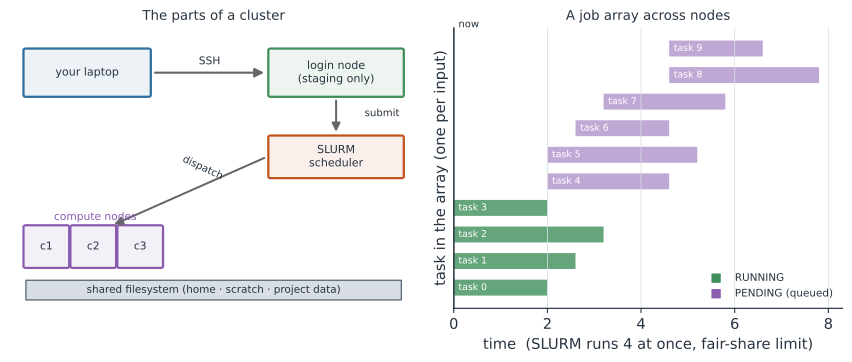
A cluster is a large collection of computers (nodes) wired together with fast storage and a fast network, managed as a single shared resource. You don’t run your work interactively on the whole machine. Instead you describe the job you want to run and hand it to a scheduler, which finds free hardware and runs it for you, possibly hours later (Figure 1).
Use a cluster when your work is:
- Big — needs more RAM or CPU cores than a laptop has.
- Long — runs for hours or days without you babysitting it.
- Repetitive — the same analysis over 500 samples, 1,000 parameter sets, or 10,000 simulation replicates (an embarrassingly parallel workload the cluster can spread across many nodes at once).
- Shared — needs a common, reproducible software stack and datasets a whole lab can use.
The tradeoff is that everything is batch-oriented and shared. You wait in a queue behind other people’s jobs, and you must state up front how many CPUs, how much memory, and how much time you need. Ask for too little and the scheduler kills your job; ask for too much and you wait longer and waste the shared resource.
The Parts of a Cluster#
| Part | What it is | What you do there |
|---|---|---|
| Login node | The machine you SSH into | Edit files, move data, write and submit job scripts. Do not run heavy computation here. |
| Compute nodes | The workhorses | Where your job actually runs, dispatched by the scheduler. |
| Scheduler (SLURM) | The traffic cop | Decides which job runs where and when, based on requested resources and fair-share policy. |
| Shared filesystem | Storage visible from every node | Your home directory, scratch space, and project data. |
Do treat the login node as a staging area only. Don’t run a long R or Python job directly on the login node — it is shared by everyone and the admins will (rightly) kill it.
Connecting with SSH#
SSH (Secure Shell) is the encrypted way you log into the cluster from a terminal. It is the only supported way to get a command line on DEAC and DEMON login nodes.
# General form
ssh your_username@login-hostname

# e.g. connecting to DEAC with your WFU credentials
ssh jsnow@wfu.edu
You authenticate with your WFU (or School of Medicine) password, or — better — an SSH key. A key pair lets you log in without typing a password every time and is more secure.
# 1. Create a key pair on YOUR laptop (once). Accept the defaults; set a passphrase.
ssh-keygen -t ed25519 -C "jsnow@wfu.edu"

# 2. Copy the PUBLIC key to the cluster so it recognizes you
ssh-copy-id your_username@login-hostname

# 3. Now this just works, no password prompt
ssh your_username@login-hostname
Do keep your private key (~/.ssh/id_ed25519) on your own machine and never share or commit it.
Don’t paste keys, passwords, or tokens into scripts — see Handling Secrets and API Keys.
Moving Data On and Off#
Your code lives in Git, so pull it directly on the cluster with git clone.
For data files, use scp or rsync from your laptop:
# Copy a file up to the cluster
scp cases.csv your_username@login-hostname:~/flu-study/data/

# Copy a whole folder of results back down (rsync only re-sends what changed)
rsync -av your_username@login-hostname:~/flu-study/results/ ./results/
Software: The Module System#
A cluster serves hundreds of users who each need different software and different versions. Installing everything into one global environment would be chaos, so clusters use environment modules (DEAC and DEMON use Lmod, a Lua-based module system).
A module is a preinstalled piece of software you switch on for your session.
Loading a module edits your PATH and related variables so the right program and version are found.
module avail                 # list every available module (look for (D) = default version)
module spider python         # search for a package and see how to load it
module load python/3.11      # turn on a specific version
module list                  # show what you currently have loaded
module unload python/3.11    # turn it back off
module swap gcc/11 gcc/13    # replace one module with another
module purge                 # unload everything and start clean
Do pin explicit versions (module load r/4.4.1, not bare module load r) so your job is reproducible months later when the default changes.
Do put your exact module load lines inside your job script, not just in your interactive shell — a submitted job starts from a clean environment.
Don’t assume a package is installed; check module spider first, and email the HPC team (deac-help@wfu.edu) if you need something added.
Submitting a Job with SLURM#
You almost never run programs directly.
You write a batch script — a normal shell script plus a header of #SBATCH directives telling SLURM what resources you need — and submit it with sbatch.
A Batch Script, Line by Line#
#!/bin/bash
#SBATCH --job-name=flu-sim          # a name you'll recognize in the queue
#SBATCH --partition=small           # which queue/partition to run in
#SBATCH --nodes=1                   # how many nodes
#SBATCH --ntasks=1                  # how many tasks (processes)
#SBATCH --cpus-per-task=8           # cores for that task (for multithreading)
#SBATCH --mem=16gb                  # total memory
#SBATCH --time=02:00:00             # wall-clock limit (HH:MM:SS) -- job is killed after
#SBATCH --output=logs/%x_%j.out     # stdout -> logs/<job-name>_<job-id>.out
#SBATCH --error=logs/%x_%j.err      # stderr -> logs/<job-name>_<job-id>.err
#SBATCH --mail-type=END,FAIL        # email me when the job finishes or fails
#SBATCH --mail-user=me@wfu.edu

# ---- everything below runs on the compute node ----

module purge                        # start from a clean environment
module load r/4.4.1                 # load the exact software you need

cd $SLURM_SUBMIT_DIR                 # SLURM starts you where you ran sbatch
Rscript simulate.R                  # do the actual work
The #SBATCH lines must come right after the #!/bin/bash line and before any real commands.
Two directives do most of the rejections, so get them right:
--time— your job is killed the instant it exceeds this. Estimate generously, but not wildly; shorter jobs are scheduled sooner.--mem— if your job exceeds this, it is killed (often with a crypticOOM/ out-of-memory error). Ask for what you need plus a modest buffer.
Submitting and Watching It#
sbatch run_sim.sh        # submit; prints "Submitted batch job 123456"

squeue -u $USER          # your jobs: are they PENDING (PD) or RUNNING (R)?
sinfo                    # cluster/partition status: what's idle vs. busy
scontrol show job 123456 # full detail on one job (why it's still pending, etc.)
scancel 123456           # cancel a job you no longer want
sacct -j 123456          # after it finishes: exit code, memory used, elapsed time
Do check sacct after a run to see how much memory and time you actually used, then tune your next request to match — this makes your future jobs schedule faster and keeps you a good citizen of a shared machine.
Don’t sit and refresh squeue; use --mail-type=END,FAIL and let SLURM email you.
Running Many Jobs at Once: Job Arrays#
The cluster shines when you run the same analysis over many inputs.
A job array launches one job per item with a single sbatch, and SLURM runs as many in parallel as there is room for.
#!/bin/bash
#SBATCH --job-name=boot
#SBATCH --array=1-100              # 100 tasks, numbered 1..100
#SBATCH --cpus-per-task=1
#SBATCH --mem=4gb
#SBATCH --time=00:30:00
#SBATCH --output=logs/boot_%A_%a.out   # %A = array job id, %a = task index

module purge
module load r/4.4.1

# SLURM_ARRAY_TASK_ID is 1, 2, 3, ... -- each task gets a different value.
# Use it as a seed, a row index, or a filename to split the work.
Rscript bootstrap.R $SLURM_ARRAY_TASK_ID
Each task receives a distinct $SLURM_ARRAY_TASK_ID, so task 7 might run replicate 7 or process sample 7.
This is the idiomatic way to run 100 simulation replicates or fit a model to 500 samples — see A Simulation Toolkit for structuring the work itself.
Testing Interactively First#
Before submitting a batch job, it is worth debugging on a compute node interactively so you’re not waiting on the queue after every typo.
srun/salloc grabs a compute node and drops you into a shell on it:
# Request a small interactive session on a compute node
srun --pty --cpus-per-task=2 --mem=4gb --time=00:30:00 bash

# ...now you're ON a compute node. Load modules and run a few lines to check.
module load r/4.4.1
Rscript -e 'source("simulate.R")'   # confirm it starts cleanly
exit                                 # release the node when done
Do get your script running on a tiny interactive session first, then scale up the #SBATCH resources and submit the full job with sbatch.
Don’t debug by submitting the full 48-hour job and waiting a day to discover a typo in line 3.
A Sensible Workflow#
- Develop locally on a small subset so the code is correct before it touches the cluster.
- SSH in and
git clone(orgit pull) your project onto the shared filesystem. - Load modules and test interactively with
srunon a slice of the data. - Write the batch script with honest
--timeand--memrequests. sbatchit, thensqueueto confirm it’s queued.- When it finishes, check
sacctand your log files, then pull results back withrsync.
Do keep the whole thing in version control — job scripts included — so a run is fully reproducible. Don’t leave large outputs or credentials in your home directory; use scratch space for big files and keep secrets out of scripts.
Getting Help#
The clusters are staffed by an HPC team who handle software installs, quota bumps, and troubleshooting.
The DEAC documentation (https://deac-wiki.readthedocs.io/) is the authoritative reference for hostnames, partitions, and policies, and you can email deac-help@wfu.edu for support.
School of Medicine researchers using DEMON should follow their local HPC documentation, but the SLURM and module commands above are the same.
Related#
- Computer Basics for Scientists — paths, the shell, and the command line
- A Simulation Toolkit — the parallel workloads clusters are made for
- Reproducibility — pinning versions and environments
- Version Control with Git & GitHub — getting code onto the cluster
- Handling Secrets and API Keys — keeping keys out of job scripts
- Programming & Computing