Computer Basics for Scientists
Before you can write reproducible analysis code, you need a clear mental model of how a computer stores and finds your files. A little fluency with directories and the command line will save you hours of frustration and make your work far easier to reproduce.
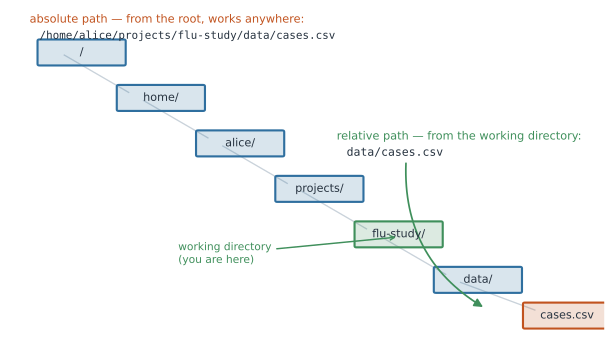
How Files Are Stored#
Think of your computer’s storage as a tree of nested folders (also called directories). Each folder can contain files and more folders. A file is just a named container of bytes living somewhere in that tree.
Every file has a path describing where it lives.
Absolute vs. Relative Paths#
- An absolute path starts from the root of the filesystem and works from anywhere.
- A relative path is interpreted from your current working directory (where your shell or script is “standing” right now).
# Absolute path (Mac/Linux): unambiguous, works from anywhere
/home/alice/projects/flu-study/data/cases.csv

# Relative path: depends on your current working directory
data/cases.csv

# Special shortcuts
.        # the current directory
..       # the parent directory (one level up)
~        # your home directory
Do use relative paths inside a project (data/cases.csv) so the project still works when moved or shared.
Don’t hard-code absolute paths like /home/alice/... into scripts you plan to share, they will break on anyone else’s machine.
The Working Directory#
The working directory is the folder a program treats as “here.”
When a script says read.csv("data/cases.csv"), it looks relative to the working directory (Figure 1).
Always know where you are before running code.
pwd # print working directory: shows where you currently are
Common File Extensions#
The extension is a hint about a file’s format. It does not change the contents by itself.
| Extension | Contents |
|---|---|
.csv | comma-separated values, tabular data (plain text) |
.json | structured key/value data (plain text) |
.txt | unformatted plain text |
.R | R script |
.py | Python script |
Plain Text vs. Binary#
- Plain text files (
.csv,.json,.txt,.R,.py) are human-readable characters. You can open them in any editor, diff them, and track them cleanly in Git. - Binary files (
.xlsx,.docx,.png,.sav) are encoded for specific programs and look like gibberish in a text editor.
Do prefer plain-text formats for data and code, they are transparent, durable, and version-control-friendly. Don’t store your primary dataset only inside a proprietary binary format.
Software vs. Hardware#
- Hardware is the physical machine: CPU (does calculations), RAM (fast temporary memory), disk/SSD (long-term storage).
- Software is the instructions the hardware runs: your operating system, R, Python, your text editor.
When a program is “slow,” it may be waiting on the CPU (computation), running out of RAM (memory), or reading a large file from disk. Knowing which helps you fix it.
GUI vs. Command Line#
A GUI (graphical user interface) is point-and-click: menus, buttons, windows. The command line (a shell or terminal) is where you type text commands.
Why Scripts Beat Point-and-Click for Reproducibility#
Clicking through menus leaves no record of what you did. A script is an exact, re-runnable recipe:
- It documents every step automatically.
- Anyone (including future you) can rerun it and get the same result.
- It can be version-controlled, reviewed, and shared.
Do write your analysis as scripts. Don’t rely on a sequence of manual clicks you will not remember in six months.
A Starter Set of Shell Commands#
These run in a Unix-style shell (Mac Terminal, Linux, or Git Bash / WSL on Windows).
pwd                      # print the current working directory
ls                       # list files in the current directory
ls -la                   # list all files (incl. hidden) with details
cd projects/flu-study    # change directory into a folder
cd ..                    # move up one directory
mkdir data               # make a new directory called "data"
mv old.csv data/         # move (or rename) a file
cp cases.csv backup.csv  # copy a file
rm scratch.txt           # remove (delete) a file -- no undo, be careful
cat notes.txt            # print a file's contents to the screen
less bigfile.log         # scroll through a large file (press q to quit)
chmod +x run.sh          # make a script executable
man ls                   # show the manual page for a command
grep "error" log.txt     # search for lines containing "error"
find . -name "*.csv"     # find all .csv files under the current directory
Do use man <command> (or <command> --help) whenever you forget how something works.
Don’t run rm on paths you are unsure about, deletion is usually permanent from the shell.
Operating System Differences#
- Path separators: Mac and Linux use forward slashes (
/home/alice); Windows traditionally uses backslashes (C:\Users\alice). R and Python accept forward slashes on all platforms, so prefer/in code. - Line endings: Windows ends text lines with
\r\n(CRLF); Mac/Linux use\n(LF). This can cause “invisible” diffs and broken scripts. Configure your editor and Git (git config --global core.autocrlf) to handle it consistently. - Shells: Mac/Linux ship with a Unix shell (
bash/zsh). On Windows, install Git Bash or WSL (Windows Subsystem for Linux) to use the same commands shown above.